
A Practical Guide to Organizing Digital Photos on Your Phone

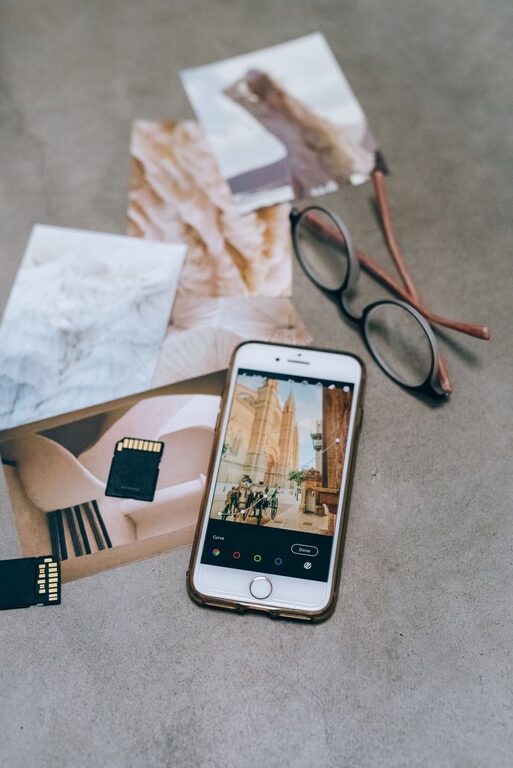
Your phone may hold thousands of photos, from everyday snapshots to important documents and memorable events. Without a simple system, finding one picture can become frustrating. The good news is that you do not need special software or advanced technical skills to organize your photo library.
A few consistent habits can make your photos easier to browse, search, protect, and enjoy. This practical guide explains how to clean up your existing library and maintain it over time.
Start With a Quick Photo Audit
Before organizing individual photos, take a few minutes to understand what is taking up space on your phone.
Open your main photo app and look at:
– The total number of photos and videos
– The oldest and newest items
– Screenshots and screen recordings
– Downloaded images
– Duplicate or nearly identical photos
– Large video files
– Photos that are blurry, accidental, or no longer useful
This first review helps you identify the biggest sources of clutter. You may discover that screenshots, social media downloads, or short video clips make up much of your library.
Do not try to organize everything perfectly in one sitting. A large photo library is easier to manage when you work in small sections, such as one month, one year, or one event at a time.
Delete Unwanted Photos First
Removing unnecessary files is usually the fastest way to make your library more manageable. Start with obvious items that do not need careful consideration.
Look for:
– Blurry photos
– Accidental pocket or desk photos
– Repeated pictures
– Images with poor lighting
– Screenshots you no longer need
– Old product images
– Temporary reference photos
– Videos that are too large or unimportant
When you take several similar photos, keep the best one or two. Compare facial expressions, focus, lighting, and composition. If you are unsure whether to delete something, move it to a temporary album called “Review Later.” Set a reminder to check that album after a few weeks.
Most phones place deleted items in a recently deleted folder for a limited period. This gives you a chance to restore something removed by mistake. After you are confident that the files are no longer needed, empty that folder to reclaim storage space.
Use Albums for Major Categories
Albums can make browsing easier, but too many albums may create more work than they solve. Focus on broad categories that match the way you naturally search for photos.
Useful album ideas include:
– Family and friends
– Trips and vacations
– Home projects
– Pets
– Celebrations
– Favorite photos
– Receipts and documents
– Photos to print
– Work or school projects
You can also create albums by year or major event, such as “Summer Road Trip 2025” or “Alex Birthday.” Choose names that will still make sense months or years from now.
Avoid creating a separate album for every small occasion. If you make an album for every dinner, weekend, or short outing, the list may become difficult to manage. Use albums for meaningful groups and rely on search tools for everything else.
Take Advantage of Search and Automatic Features
Modern photo apps often recognize dates, locations, people, objects, and text. These features can save time, especially when your library is large.
Try searching for:
– A city or location
– A month or year
– “Screenshots”
– “Videos”
– “Receipts”
– “Documents”
– “Pets”
– A color or object
– Text visible in an image
Search features vary by phone and app, but they are often more useful than manually browsing through every album. Add clear album names and use favorites to make important photos easier to find.
If your phone offers automatic grouping by people or places, review the results occasionally. These tools are helpful but may not always identify images correctly. Treat them as a starting point rather than a perfect filing system.
Organize Screenshots and Downloads
Screenshots and downloaded images often create the most clutter because they are usually saved for temporary use. Set aside time each week or month to review them.
For screenshots, ask:
- Do I still need this information?
- Can I find it somewhere else?
- Should I save the details in a note instead?
- Does it belong in a specific album?
Delete outdated appointment details, delivery updates, online shopping images, and old conversations. Move important references into a clearly named album or store the information in a notes app.
Downloaded images may include recipes, design ideas, travel information, or images shared by others. Keep only the files you expect to use again. If an image is simply an idea or reminder, consider saving a link or note instead.
Choose a Backup Method
Organizing your photos is only part of the process. A backup protects your memories if your phone is lost, damaged, or replaced.
Many people use an automatic cloud photo service. These services upload photos to an online account and may make them available across multiple devices. Check the service’s settings to understand:
– Whether uploads happen automatically
– Which account stores the photos
– Whether videos are included
– How much storage is available
– Whether the service uses full or reduced quality
– How to access your photos from another device
You can also make a computer or external drive backup. This gives you another copy that is not dependent on your phone. For important photos, consider keeping more than one backup in separate locations.
A simple backup routine might include automatic cloud uploads plus a manual copy to a computer every few months. After setting up a backup, test it by opening a few photos from the backup location.
Make Important Photos Easy to Find
Use favorites, albums, or labels for photos you access often. For example, you might create a favorites collection for:
– Photos you plan to print
– Images needed for a project
– Important household records
– Travel confirmations
– Special memories
– Photos to share with family
Be selective with favorites. If you mark hundreds of photos, the collection will no longer help you identify the most important ones. A smaller, carefully chosen group is easier to use.
For documents and records, consider scanning them with a document app instead of keeping casual photos. Give files clear names when possible, such as “Appliance Warranty” or “2026 Tax Receipt,” and store them in a secure, organized location.
Create a Simple Maintenance Routine
Photo organization works best as a small habit rather than a major yearly project. Choose a routine that fits your schedule.
Weekly or Biweekly
– Delete obvious accidental photos
– Review screenshots
– Remove unwanted downloads
– Mark important photos as favorites
Monthly
– Organize photos from recent events
– Create or update major albums
– Review large videos
– Confirm that recent photos have been backed up
Every Few Months
– Check your cloud storage space
– Make a computer or external drive backup
– Review old albums
– Remove duplicate files
– Test that backups can be opened
Spend just 10 to 15 minutes during each maintenance session. Regular small cleanups are easier than trying to sort several years of photos at once.
Protect Your Privacy
Photos may contain personal information, home addresses, travel details, or images of other people. Review your sharing settings before sending albums or links.
Use a strong password for your photo storage account and turn on an additional sign-in security option if available. Be careful when sharing photos publicly, especially images that show documents, location details, or private conversations.
You may also want to review location settings. Some phones store location information inside photo details, which can be useful for searching but worth considering before sharing files with others.
Build a System You Will Actually Use
The best organization method is not the most complicated one. It is the system you can maintain without feeling overwhelmed.
Start with three steps:
- Delete photos you do not need.
- Back up the photos you want to keep.
- Create a few broad albums for important categories.
After that, add more structure only when it solves a real problem. With a short, regular routine, your phone’s photo library can stay cleaner, safer, and much easier to enjoy.